
Working on homework, recipes, reports, or math assignments in Google Docs often requires typing fractions correctly.
While simple fractions like 1/2 are easy to type with a keyboard, creating professional-looking fractions such as ¾ or stacked mathematical fractions can feel confusing at first.
The good news is that Google Docs offers several easy ways to insert fractions without needing advanced technical skills 😊
Whether you are a student, teacher, freelancer, or office worker, learning how to format fractions properly can make your documents look cleaner and more professional.
Google Docs includes built-in tools like special characters, equation formatting, and auto substitutions that help you create fractions quickly.
You can even use shortcuts to save time while typing.
In this guide, you’ll discover simple and practical methods for writing fractions in Google Docs on both desktop and mobile devices.
From basic fractions to advanced mathematical formatting, everything is explained in a beginner-friendly way so you can follow along easily and improve the appearance of your documents ✨
✍️ Use the Equation Tool for Professional Fractions ✍️
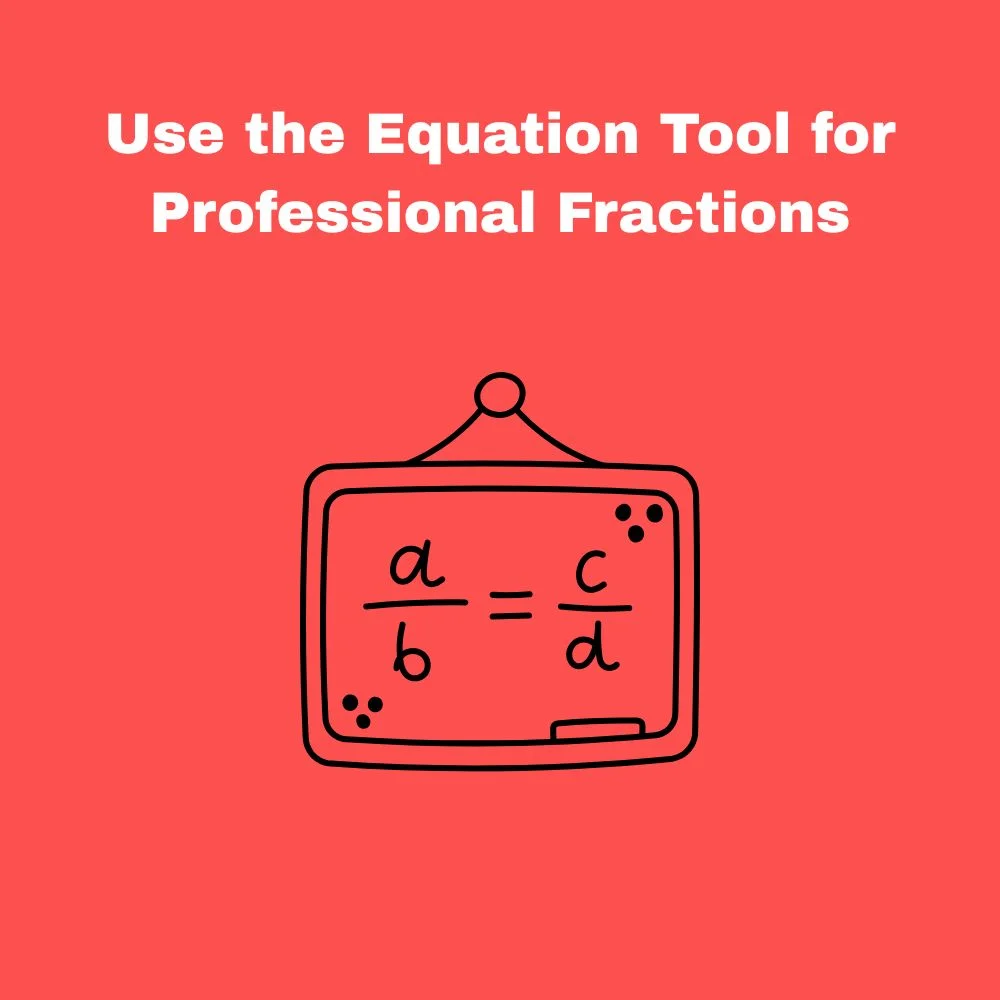
The Equation tool is one of the easiest ways to create clean and properly formatted fractions in Google Docs.
- 😊 Open your Google Docs document and place the cursor where you want the fraction 😊
- ✨ Click “Insert” from the top menu and choose “Equation” ✨
- 📘 Select the fraction option from the equation toolbar 📘
- 🖊️ Type the numerator and denominator in the boxes provided 🖊️
- 💡 This method works best for school assignments and mathematical documents 💡
Using the equation feature creates stacked fractions that look neat and professional.
📱 Type Simple Fractions Using Keyboard Characters 📱
For quick writing, you can type fractions manually without using equations.
- ✍️ Type fractions like 1/2, 3/4, or 5/8 directly from your keyboard ✍️
- 😊 This method is fast and useful for casual documents 😊
- 📄 It works well for recipes, notes, and informal writing 📄
- ⚡ No special formatting tools are required ⚡
Although simple, this style may not look as polished as equation formatting.
🔣 Insert Special Fraction Symbols in Google Docs 🔣
Google Docs allows users to insert ready-made fraction symbols.
- 😊 Go to “Insert” and click “Special Characters” 😊
- 🔍 Search for terms like “fraction” in the search box 🔍
- ✨ Choose symbols such as ½, ¼, or ¾ ✨
- 📘 Click the symbol to insert it into your document 📘
- 💡 This method is perfect for commonly used fractions 💡
Special characters are helpful when you need visually appealing fractions quickly.
💻 Create Fractions with Auto Formatting 💻
Google Docs sometimes converts certain fractions automatically.
- ✨ Typing common fractions like 1/2 may auto-convert into a fraction symbol ✨
- 😊 This feature saves time during writing 😊
- 📄 It works best with popular fractions like ½ and ¼ 📄
- ⚡ Auto formatting depends on browser and document settings ⚡
If auto formatting does not work, you can use special characters instead.
📚 Write Fractions in Google Docs on Mobile 📚
You can also type fractions using the Google Docs mobile app.
- 📱 Open the app and edit your document 📱
- ✍️ Use the keyboard to type simple fractions like 2/3 ✍️
- 😊 For advanced fractions, switch to the desktop version if needed 😊
- 📘 Some special symbols may be available on your phone keyboard 📘
Mobile typing is convenient for quick edits and simple documents.
🎓 Use Fractions in Academic Assignments 🎓
Fractions are commonly used in educational documents.
- 📄 Math assignments often require proper fraction formatting 📄
- ✨ Stacked fractions improve readability ✨
- 😊 Teachers and students benefit from cleaner equations 😊
- 📘 Google Docs equations help maintain professional formatting 📘
Using the correct fraction style can make academic work easier to understand.
⚡ Helpful Keyboard Shortcuts for Faster Formatting ⚡
Shortcuts can speed up your workflow while editing documents.
- 💻 Learn Google Docs shortcuts for quicker navigation 💻
- ✍️ Combine equation tools with keyboard commands ✍️
- 😊 Save time when working on long reports or assignments 😊
- 📄 Efficient formatting improves productivity 📄
Practicing shortcuts regularly can make document editing smoother.
🌟 Common Mistakes to Avoid When Writing Fractions 🌟
Many users make small formatting mistakes while typing fractions.
- ❌ Avoid inconsistent fraction styles in the same document ❌
- 📘 Do not use unclear spacing between numbers 📘
- 😊 Check formatting before sharing or printing documents 😊
- ✨ Use equation formatting for professional presentations ✨
Keeping formatting consistent helps documents look more polished.
🛠️ Best Situations to Use Each Fraction Method 🛠️
Different methods work better depending on the document type.
- 📄 Use keyboard fractions for quick notes and recipes 📄
- 🎓 Use equations for educational and scientific writing 🎓
- ✨ Use special characters for visually clean documents ✨
- 😊 Choose the method that matches your formatting needs 😊
Selecting the right method improves readability and presentation.
Conclusion
Learning how to write a fraction in Google Docs can make your documents look cleaner, more professional, and easier to read.
Whether you are creating school assignments, business reports, recipes, or simple notes, Google Docs provides several convenient ways to format fractions based on your needs 😊
For quick typing, basic keyboard fractions work perfectly.
If you want polished mathematical formatting, the Equation tool is the best option because it creates clear stacked fractions that are ideal for academic or technical documents.
Special characters are also useful when you need ready-made fraction symbols without extra effort.
The best part is that you do not need advanced computer skills to use any of these methods.
With a little practice, inserting fractions becomes fast and effortless.
You can experiment with different formatting styles and choose the one that fits your document best.
By understanding these simple techniques, you can improve the appearance of your Google Docs files and communicate information more clearly.
Small formatting improvements often make a big difference in readability and professionalism.
Start trying these methods today and make your documents look more organized, polished, and visually appealing ✨

