

If you’ve ever typed a chemical formula like H₂O or a math equation with tiny numbers below the line, you’ve probably needed to use subscript in Microsoft Word 😊.
Subscript formatting helps make documents look cleaner, more professional, and easier to understand.
Whether you’re a student working on assignments, a teacher preparing notes, or a professional handling scientific or technical content, knowing how to write subscript in Word can save you time and improve your formatting skills ✨
The good news is that Microsoft Word makes adding subscript incredibly simple.
You can use keyboard shortcuts, toolbar options, font settings, and even automatic formatting features to create perfect subscripts in seconds.
Many users overlook these tools, but once you learn them, typing formulas, references, and symbols becomes much easier 📘
In this guide, you’ll learn several easy methods to write subscript in Word on both Windows and Mac.
You’ll also discover practical tips, troubleshooting solutions, and formatting tricks that help your documents look polished and professional 🚀
Understanding What Subscript Means
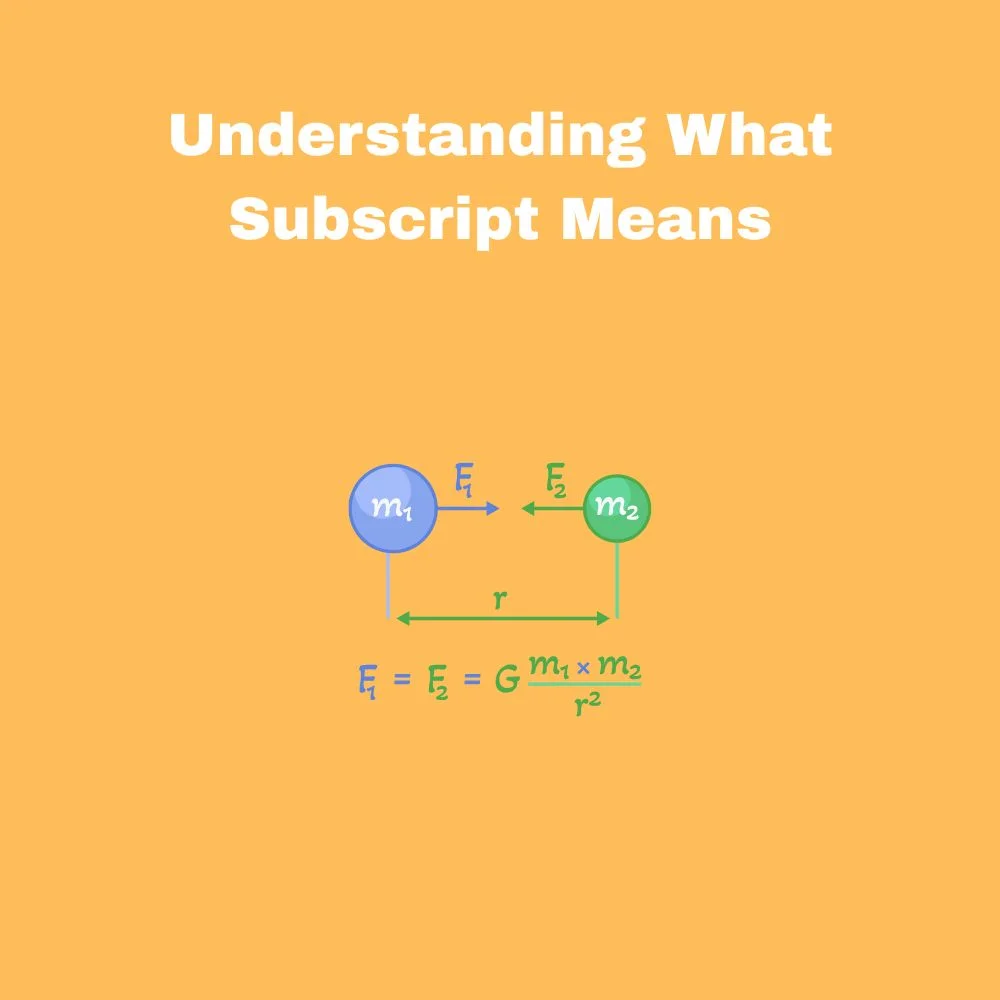
- ✏️ Subscript is text that appears slightly below the normal typing line, commonly used in chemistry, mathematics, and footnotes ✏️
- 📘 Examples include formulas like CO₂, H₂O, and mathematical expressions 📘
- 💡 Subscript helps organize technical information clearly and professionally 💡
- 🖥️ Microsoft Word includes built-in tools that make subscript formatting quick and easy 🖥️
Using the Keyboard Shortcut for Subscript
- ⌨️ The fastest way to create subscript in Word is by using keyboard shortcuts ⌨️
- ⚡ On Windows, press Ctrl + = to enable or disable subscript formatting ⚡
- 🍎 On Mac, use Command + = for the same function 🍎
- 📝 Highlight text first if you want to convert existing text into subscript 📝
- 🚀 Keyboard shortcuts save time when working on long documents or formulas 🚀
Writing Subscript from the Home Toolbar

- 🖱️ Open Microsoft Word and go to the Home tab 🖱️
- 🔤 Locate the Font section where formatting tools appear 🔤
- 📉 Click the subscript icon, which looks like “X₂” 📉
- ✍️ Start typing, and the text will automatically appear as subscript ✍️
- 🔄 Click the button again to return to normal text formatting 🔄
Using the Font Dialog Box
- ⚙️ Another easy method is using the Font settings menu ⚙️
- 🖱️ Right-click highlighted text and select Font 🖱️
- 📄 In the dialog box, check the Subscript option 📄
- ✅ Click OK to apply the formatting instantly ✅
- 💼 This method gives you additional formatting control for professional documents 💼
How to Add Subscript in Equations
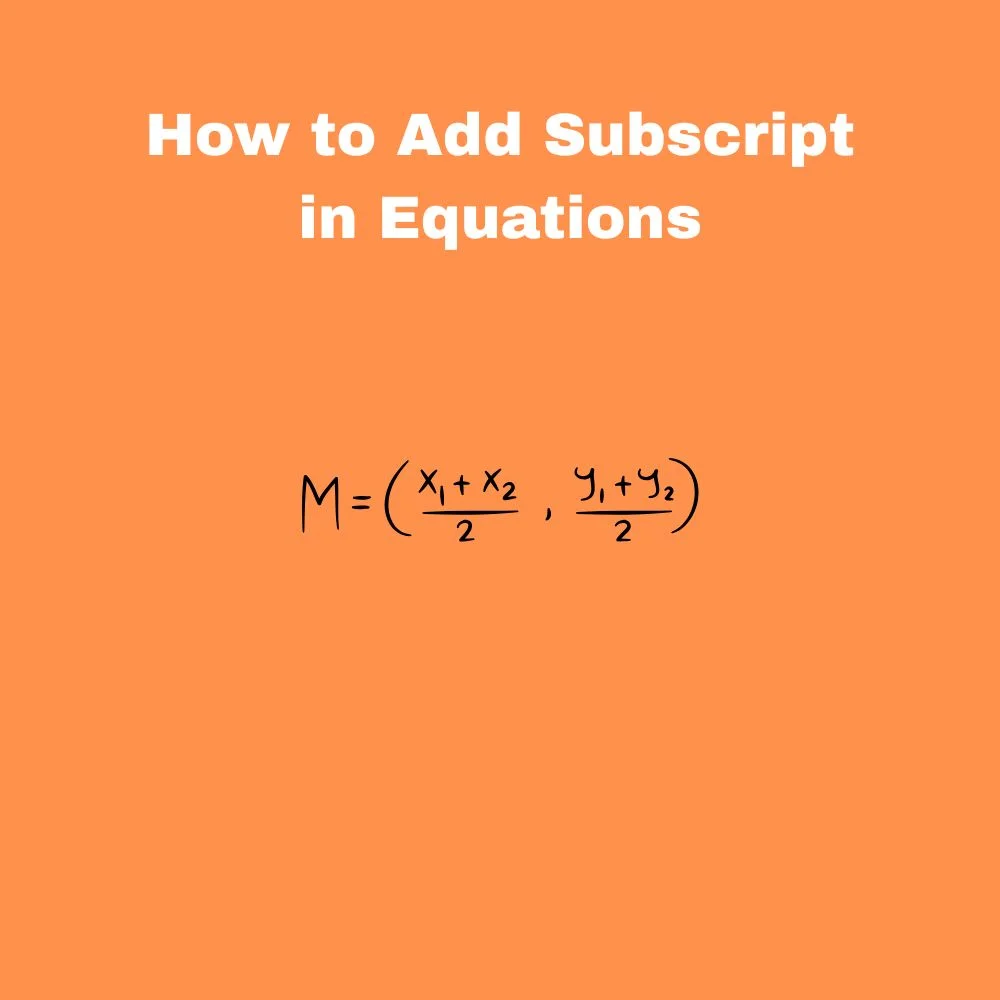
- ➕ Word’s Equation Editor supports advanced subscript formatting ➕
- 📐 Go to the Insert tab and choose Equation 📐
- 🔢 Use equation templates for scientific and mathematical expressions 🔢
- 🧪 Perfect for chemistry formulas, algebra, and physics equations 🧪
- 📚 Equation tools provide cleaner formatting for academic writing 📚
Creating Chemical Formulas Easily
- 🧬 Subscript is commonly used in chemistry for molecular formulas 🧬
- 💧 Examples include H₂O, CO₂, and O₂ 💧
- ✍️ Type the main element first, then apply subscript to the numbers ✍️
- 🎓 Proper formatting improves readability in school and research documents 🎓
- 📖 Clear formulas make technical content look more professional 📖
Using AutoCorrect for Faster Formatting
- ⚡ Microsoft Word’s AutoCorrect feature can simplify repetitive tasks ⚡
- 🛠️ Create custom shortcuts for commonly used subscripts 🛠️
- ⏱️ This saves time when typing formulas frequently ⏱️
- 📄 AutoCorrect works well for students, researchers, and professionals 📄
- 🚀 Personalized shortcuts increase typing efficiency dramatically 🚀
Subscript on Word Online
- 🌐 Microsoft Word Online also supports subscript formatting 🌐
- 🖥️ Highlight text and use the toolbar formatting options 🖥️
- ⌨️ Keyboard shortcuts often work in browser versions too ⌨️
- ☁️ Great for editing documents from anywhere using cloud storage ☁️
- 📱 Helpful for quick formatting without desktop software 📱
Common Problems and Quick Fixes
- ❌ Sometimes keyboard shortcuts may not work correctly ❌
- 🔄 Restart Word if formatting tools stop responding 🔄
- ⚙️ Check keyboard language settings if shortcuts fail ⚙️
- 🖱️ Ensure the correct text is highlighted before applying formatting 🖱️
- 💡 Updating Microsoft Word can solve many formatting glitches 💡
Tips for Better Document Formatting
- 📑 Use subscript consistently throughout your document 📑
- 🎯 Avoid excessive formatting that may distract readers 🎯
- 🧹 Keep scientific and technical content clean and organized 🧹
- ✨ Combine subscript with superscript carefully for professional results ✨
- 📘 Proofread formulas to ensure accuracy before sharing documents 📘
Why Learning Subscript Matters
- 🎓 Students often need subscript for assignments and lab reports 🎓
- 💼 Professionals use it in reports, presentations, and technical writing 💼
- 📚 Teachers and researchers rely on accurate formatting daily 📚
- 🧠 Knowing formatting shortcuts improves productivity and workflow 🧠
- 🚀 Small skills like this can make documents look significantly better 🚀
Conclusion
Learning how to write subscript in Word is a small skill that can make a big difference in the appearance and professionalism of your documents 😊
Whether you’re preparing school assignments, creating scientific formulas, typing mathematical equations, or writing technical reports, subscript formatting helps present information clearly and accurately.
Microsoft Word offers several easy ways to add subscript, including keyboard shortcuts, toolbar buttons, font settings, and equation tools.
Once you become familiar with these options, formatting complex content becomes much faster and less stressful ✨
Even beginners can master subscript in just a few minutes.
The best part is that these methods work across different versions of Word, including Word Online and desktop applications.
By practicing these simple techniques, you can improve document quality, save time, and create polished content with confidence 📘
Remember, professional formatting is not just about appearance it also improves readability and communication.
Small details like correctly formatted subscripts show attention to detail and help your work stand out 🚀
Now that you know the easiest ways to write subscript in Word, you can start using these tools in your everyday documents with ease and confidence 🌟

