
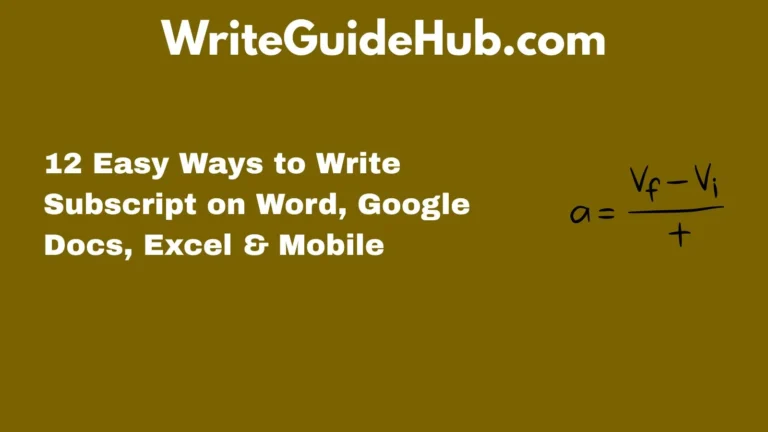
Have you ever seen tiny letters or numbers sitting slightly below a line of text and wondered how to create them?
Those small characters are called subscripts, and they’re commonly used in chemistry formulas, math equations, footnotes, coding, and academic writing.
Whether you’re typing H₂O in a science project or formatting professional documents, learning how to write subscript can make your work look cleaner and more polished 😊
The good news is that creating subscript text is easier than many people think.
You can do it in popular programs like Microsoft Word, Google Docs, Excel, and even on smartphones.
Some methods use keyboard shortcuts, while others rely on formatting tools built into the software.
Once you understand the basics, you’ll be able to add subscript quickly without interrupting your workflow.
In this guide, you’ll learn simple and practical ways to write subscript across different devices and platforms.
Whether you’re a student, teacher, office worker, or casual computer user, these easy tips will help you format text like a pro ✨
✨ What Is Subscript and Why Is It Important? ✨
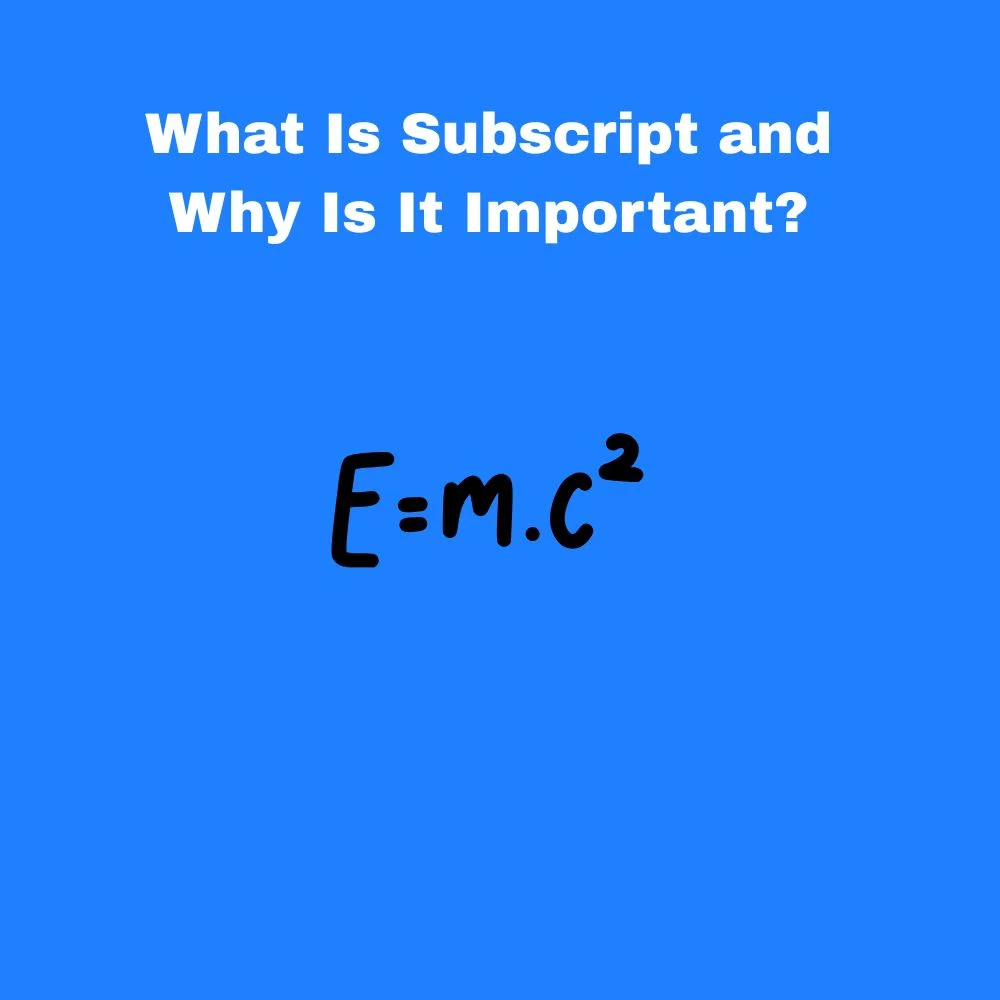
Subscript is a formatting style where letters, symbols, or numbers appear slightly below the normal text line.
Common uses include:
- 📘 Writing chemical formulas like H₂O and CO₂ 📘
- 📐 Creating mathematical expressions 📐
- 🧪 Formatting scientific documents professionally 🧪
- 💻 Writing programming or coding variables 💻
- 📝 Adding references and footnotes 📝
Using subscript properly improves readability and gives documents a more professional appearance.
💻 How to Write Subscript in Microsoft Word 💻
Microsoft Word offers one of the easiest ways to create subscript text.
You can use these methods:
- ⌨️ Highlight the text and press
Ctrl + =on Windows ⌨️ - 🍎 Use
Command + =on Mac devices 🍎 - 🖱️ Select the Home tab and click the Subscript button 🖱️
- 📄 Open the Font settings for advanced formatting 📄
This method is perfect for school assignments, reports, and scientific documents.
🌐 How to Add Subscript in Google Docs 🌐

Google Docs also includes built-in subscript formatting tools.
Here’s how:
- 🖱️ Highlight the desired text 🖱️
- 📑 Click “Format” from the top menu 📑
- ✨ Choose “Text” and then “Subscript” ✨
- ⌨️ Use the shortcut
Ctrl + ,on Windows ⌨️ - 🍎 Use
Command + ,on Mac 🍎
Google Docs makes collaboration easy while keeping formatting professional.
📱 How to Type Subscript on Mobile Phones 📱
Typing subscript on smartphones can be slightly different depending on the app you use.
Helpful methods include:
- 📲 Using document apps like Google Docs or Microsoft Word 📲
- 🔤 Copying and pasting subscript characters from online tools 🔤
- ⌨️ Installing special Unicode keyboards ⌨️
- 🌍 Using symbol websites for scientific notation 🌍
Some messaging apps may not fully support formatted subscripts.
📊 How to Use Subscript in Excel 📊

Subscript formatting in Excel is useful for chemical formulas and labels.
To apply it:
- 🖱️ Double-click the cell containing text 🖱️
- 🔍 Highlight the character you want as subscript 🔍
- ⚙️ Right-click and choose “Format Cells” ⚙️
- ✨ Check the “Subscript” option ✨
This feature helps organize technical spreadsheets neatly.
🧪 Common Examples of Subscript Text 🧪
Subscript appears in many everyday academic and professional situations.
Examples include:
- 🌊 H₂O for water 🌊
- 🌬️ CO₂ for carbon dioxide 🌬️
- ⚛️ Chemical equations in science ⚛️
- 📘 Mathematical variables like a₁ and x₂ 📘
- 🔬 Scientific research papers 🔬
Recognizing these examples helps you understand when to use subscript correctly.
⌨️ Keyboard Shortcuts for Subscript ⌨️
Keyboard shortcuts can save a lot of time while formatting text.
Popular shortcuts include:
- 💻
Ctrl + =in Microsoft Word on Windows 💻 - 🍎
Command + =on Mac 🍎 - 🌐
Ctrl + ,in Google Docs 🌐 - ⚡ Quick-access toolbar customization for faster formatting ⚡
Learning shortcuts boosts productivity and typing speed.
🔤 Difference Between Superscript and Subscript 🔤
Many people confuse superscript with subscript, but they are different.
Main differences include:
- ⬇️ Subscript appears below the text line ⬇️
- ⬆️ Superscript appears above the text line ⬆️
- 🧪 Subscript is common in chemistry 🧪
- 📐 Superscript is often used in exponents 📐
Understanding both styles improves document formatting skills.
🖥️ Using Unicode Characters for Subscript 🖥️
Unicode provides ready-made subscript characters that can be copied anywhere.
Benefits include:
- 🌍 Works on many websites and apps 🌍
- 📋 Easy copy-and-paste formatting 📋
- 🔠 Useful for social media or online posts 🔠
- ⚡ Quick formatting without special software ⚡
However, Unicode supports limited letters and numbers compared to full formatting tools.
📚 Tips for Using Subscript Correctly 📚
Good formatting makes your writing more professional and easier to understand.
Helpful tips include:
- ✍️ Use subscript only when necessary ✍️
- 📄 Keep formatting consistent throughout documents 📄
- 🔍 Double-check scientific formulas 🔍
- 💡 Avoid overusing special text styles 💡
- 🧠 Practice shortcuts regularly for faster typing 🧠
Small formatting details can greatly improve readability.
🚫 Common Mistakes to Avoid When Writing Subscript 🚫
Beginners often make a few common formatting mistakes.
Try to avoid:
- ❌ Using regular numbers instead of actual subscript ❌
- 📉 Mixing superscript and subscript incorrectly 📉
- 🔤 Applying subscript to entire words unnecessarily 🔤
- 📱 Assuming every app supports formatting 📱
Correct formatting ensures your work looks accurate and professional.
Conclusion 🌟
Learning how to write subscript is a valuable skill that can improve both academic and professional writing.
From science assignments and chemistry formulas to spreadsheets and technical documents, subscript helps present information clearly and accurately.
Although it may seem like a small formatting feature, it plays an important role in making your content easier to read and more visually organized 😊
One of the best things about subscript formatting is that it’s accessible on almost every modern platform.
Whether you use Microsoft Word, Google Docs, Excel, or even a smartphone, there are simple tools and shortcuts available to help you create subscript text quickly.
With just a little practice, these methods can become part of your regular typing routine.
It’s also important to understand when to use subscript properly.
Applying it thoughtfully keeps documents clean, professional, and easy to understand.
Overusing special formatting can make writing confusing, so balance is key.
By mastering subscript formatting, you’ll be better prepared for school projects, office tasks, scientific writing, and digital communication.
Once you get comfortable with the shortcuts and tools, adding subscript will feel effortless and natural ✨

