
Few things are more frustrating than trying to copy files to your SD card and suddenly seeing the message: “The disk is write protected.” 😕
Whether you’re transferring photos from your camera, saving documents, or formatting a memory card, write protection can completely stop your workflow.
The good news is that this issue is usually easy to fix once you understand the cause.
Write protection is a safety feature designed to prevent accidental deletion or modification of files.
Sometimes it’s triggered by a small physical lock switch on the SD card, while other times it may happen because of corrupted files, system errors, or incorrect device settings.
Fortunately, there are several safe and effective methods you can use to remove write protection and regain full access to your card. 😊
In this guide, you’ll learn practical solutions that work for Windows, Android devices, cameras, and more.
We’ll also cover common reasons why SD cards become write protected and share tips to prevent the problem from happening again.
Let’s get your SD card working properly again! 🚀
Understanding Why an SD Card Becomes Write Protected
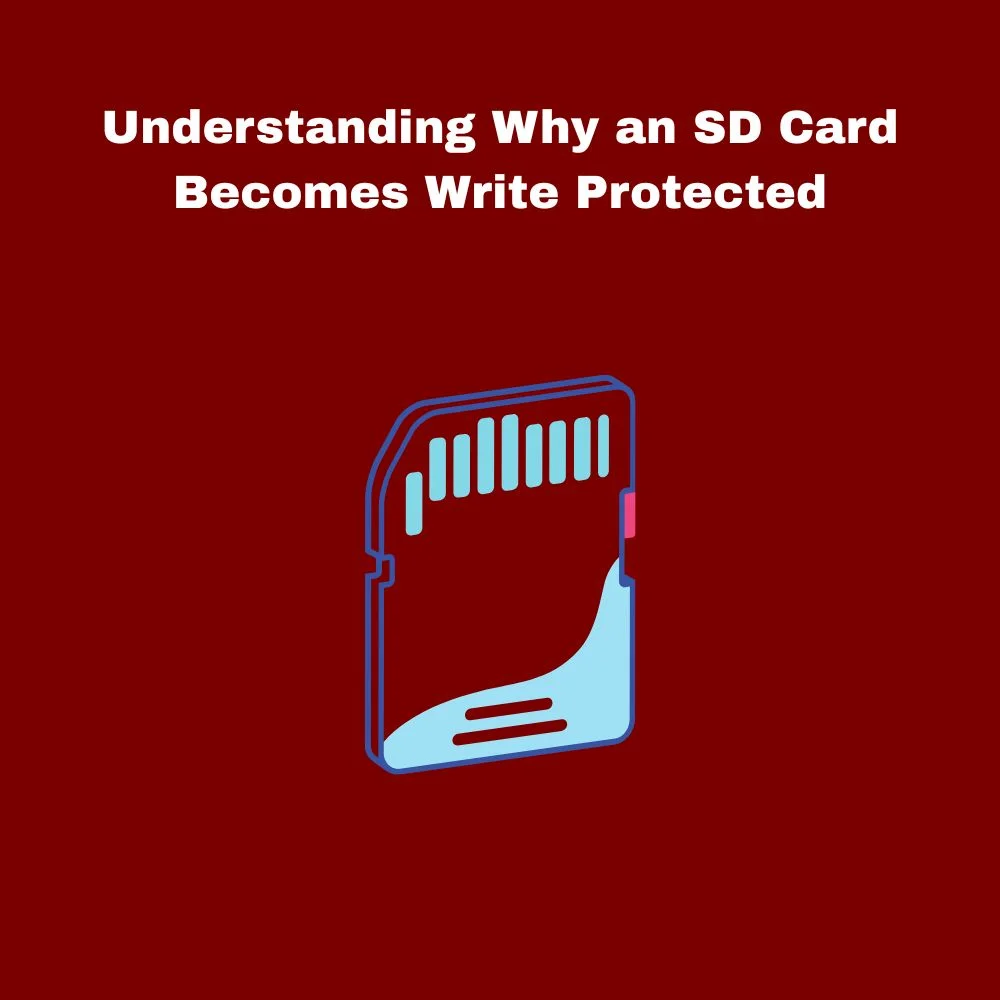
- 🔒 The physical lock switch on the SD card may be turned on accidentally 🔒
- 💻 File system corruption can trigger write protection errors 💻
- 📷 Cameras and smartphones sometimes lock damaged SD cards automatically 📷
- 🦠 Malware or viruses may restrict writing permissions on storage devices 🦠
- ⚙️ Incorrect registry or system settings can prevent file transfers ⚙️
- 🛑 An old or failing SD card may activate read-only mode permanently 🛑
Check the Physical Lock Switch First
- 🔍 Remove the SD card and inspect the side carefully 🔍
- ↕️ Slide the tiny switch upward to unlock the card ↕️
- 💡 Reinsert the card into your device after adjusting the switch 💡
- 📱 Test the card on another device to confirm the issue 📱
- 🧼 Clean dust or debris near the switch if it feels stuck 🧼
Restart Your Device Before Trying Advanced Fixes

- 🔄 A quick restart can refresh temporary system errors 🔄
- 💻 Reboot your computer, camera, or Android phone completely 💻
- 📂 Try copying or deleting files again after restarting 📂
- ⚡ Disconnect external storage devices before rebooting ⚡
Remove Write Protection Using Windows File Explorer
- 🖥️ Insert the SD card into your computer properly 🖥️
- 📁 Open “This PC” and locate the SD card 📁
- 🛠️ Right-click the card and select “Properties” 🛠️
- 🔓 Disable the “Read-only” option if it appears 🔓
- ✅ Apply changes and safely eject the card afterward ✅
Use Command Prompt to Unlock the SD Card
- 💻 Open Command Prompt as Administrator 💻
- ⌨️ Type
diskpartand press Enter ⌨️ - 📀 Enter
list diskto locate your SD card 📀 - 🎯 Type
select disk X(replace X with your SD card number) 🎯 - 🔓 Use the command
attributes disk clear readonly🔓 - ✅ Exit the tool and reconnect the SD card ✅
Fix SD Card Errors With Windows Error Checking
- 🧰 Corrupted sectors can trigger write protection warnings 🧰
- 📂 Open the SD card properties from File Explorer 📂
- 🔍 Select the “Tools” tab and click “Check” 🔍
- ⚡ Allow Windows to scan and repair detected issues ⚡
- 💾 Restart your system once the process finishes 💾
Format the SD Card to Remove Write Protection
- ⚠️ Formatting deletes all existing data, so back up files first ⚠️
- 💻 Right-click the SD card and choose “Format” 💻
- 📁 Select FAT32 or exFAT as the file system 📁
- 🚀 Start the formatting process and wait patiently 🚀
- ✅ Test the card after formatting is complete ✅
Remove Write Protection on Android Phones
- 📱 Restart your Android device before troubleshooting 📱
- ⚙️ Go to Storage Settings and check SD card permissions ⚙️
- 🧹 Clear cache from file manager apps if needed 🧹
- 🔄 Reinsert the SD card carefully into the phone 🔄
- 💾 Back up important files before formatting through Android settings 💾
Fix Write Protection on a Camera SD Card
- 📷 Turn off the camera before removing the card 📷
- 🔍 Inspect the lock switch carefully for damage 🔍
- 🧼 Clean the card slot gently using compressed air 🧼
- 🔄 Test the SD card on a computer to isolate the problem 🔄
- ⚡ Update camera firmware if the issue continues ⚡
Scan the SD Card for Viruses or Malware
- 🦠 Malware infections can block write access unexpectedly 🦠
- 🛡️ Use trusted antivirus software to scan the SD card 🛡️
- 🚫 Remove suspicious files or harmful programs safely 🚫
- 🔄 Restart your device after completing the scan 🔄
Update SD Card Drivers on Windows
- 💻 Outdated drivers may cause storage errors 💻
- ⚙️ Open Device Manager from the Start menu ⚙️
- 📀 Expand “Disk Drives” and locate your SD card 📀
- 🔄 Right-click and choose “Update Driver” 🔄
- ✅ Restart the computer after updating drivers ✅
When the SD Card Is Permanently Locked
- ⚠️ Some damaged cards become permanently read-only ⚠️
- 📉 Frequent errors may indicate hardware failure 📉
- 💾 Recover important files immediately if possible 💾
- 🛒 Consider replacing the SD card with a new one 🛒
- 🔐 Buy high-quality memory cards from trusted brands 🔐
Tips to Prevent SD Card Write Protection Problems
- 💾 Always eject the SD card safely before removal 💾
- 🧼 Keep the card clean and away from moisture 🧼
- ⚡ Avoid interrupting file transfers suddenly ⚡
- 🔒 Store SD cards in protective cases when not in use 🔒
- 📂 Back up important files regularly to avoid data loss 📂
- 🛡️ Use antivirus software to keep devices secure 🛡️
Common Mistakes to Avoid
- ❌ Forcing the lock switch can damage the SD card ❌
- ⚠️ Formatting without backups may erase important files ⚠️
- 🦠 Ignoring malware scans can worsen storage issues 🦠
- 🔄 Removing the card during data transfer may corrupt files 🔄
- 💻 Using incompatible card readers can create connection problems 💻
Conclusion
Dealing with a write-protected SD card can feel stressful, especially when important files are involved.
Fortunately, most write protection issues can be solved with a few simple troubleshooting steps.
From checking the physical lock switch to using Command Prompt or formatting the card, there are several reliable ways to restore normal access. 😊
The key is identifying the real cause of the problem. Sometimes the solution is as simple as unlocking the card manually, while other situations may require repairing corrupted files or updating system settings.
Taking a careful step-by-step approach helps prevent accidental data loss and keeps your SD card functioning properly.
It’s also important to remember that SD cards don’t last forever.
If your card repeatedly becomes write protected, it may be a sign of hardware failure.
In that case, backing up your files and replacing the card is often the safest choice. 💾
By following the methods and prevention tips shared in this guide, you can reduce future storage problems and keep your devices running smoothly.
With proper care and regular backups, your SD card can continue storing photos, videos, and important files safely for a long time. 🚀

